Parental Controls on Mac: A Complete Setup Guide
Set up parental controls on Mac with Screen Time, account security, DNS filters, and blockers for stronger accountability and prevention.

Obex
Obex Team
You set up Screen Time. You picked the content filters. You added a passcode. Then a week later you notice a new user account on the Mac, or you realize blocked websites still slip through inside apps and embedded videos.
That’s the moment a lot of people learn the hard truth about parental controls on Mac. The default tools are useful, but they’re not enough on their own when you need real accountability. That might mean protecting a child, helping a spouse, or building a relapse-prevention setup for yourself.
A better setup uses layers. The Mac’s built-in controls still matter. They just can’t carry the whole job. What works better is a stack: Screen Time for local restrictions, DNS filtering for network-level blocking, and recovery-focused software for stronger resistance when temptation hits.
Table of Contents
- Why Most Mac Parental Controls Fail
- Using macOS Screen Time as a First Layer
- Adding Network-Level DNS Filtering
- Installing a Purpose-Built Porn Blocker for Mac
- Testing Your Defenses and Creating Accountability
- Your Layered Plan for Digital Freedom
Why Most Mac Parental Controls Fail
The usual advice sounds simple. Turn on Screen Time, block adult sites, set a passcode, and move on. In real homes, that often breaks fast.

One of the biggest failure points is account control. If the restricted user can create another account, change administrator settings, or recover the Screen Time passcode, the filter is easy to route around.
That exposes the weak assumption behind a lot of Mac parental-control guides: they assume the person being managed will always cooperate. Sometimes they will. Sometimes they won’t. And in addiction recovery, expecting perfect cooperation during a high-urge moment isn’t realistic.
The weak point isn’t the feature list
Apple has added a lot to macOS over time. Screen Time can restrict apps, web access, stores, downtime, privacy, and other settings. That’s helpful. But a long settings menu doesn’t automatically create a resilient system.
A setup fails when it has only one barrier.
If the web filter only works in obvious browser use, but not in every app path, it’s fragile. If the account can be changed, duplicated, or managed from the device itself, it’s fragile. If the person knows the passcode or can guess where the loophole is, it’s fragile.
Practical rule: If one setting can undo your whole plan, you don’t have a plan. You have a single point of failure.
Why this matters more in recovery
For ordinary screen-time management, a weak setup is annoying. For relapse prevention, it can be devastating. A person trying to quit porn usually doesn’t need a polite reminder. They need friction that still holds up when motivation drops.
That’s why built-in parental controls on Mac should be treated as a first layer, not a final answer.
A stronger setup does three things:
- Reduces easy access: It blocks common paths before the urge turns into action.
- Creates delay: It buys time to pause, text someone, pray, go for a walk, or use another recovery tool.
- Adds accountability: It makes secrecy harder, which matters because secrecy feeds relapse.
If your current setup keeps failing, that doesn’t mean you’re bad at tech. It usually means you were relying on tools that were never designed to be your only line of defense.
Using macOS Screen Time as a First Layer
Late at night is when weak setups get exposed. The Mac is still in the room, the browser is still there, and one moment of low resistance can undo a good day. Screen Time helps by adding friction at the device level, but it works best when you treat it as the first barrier, not the whole plan.
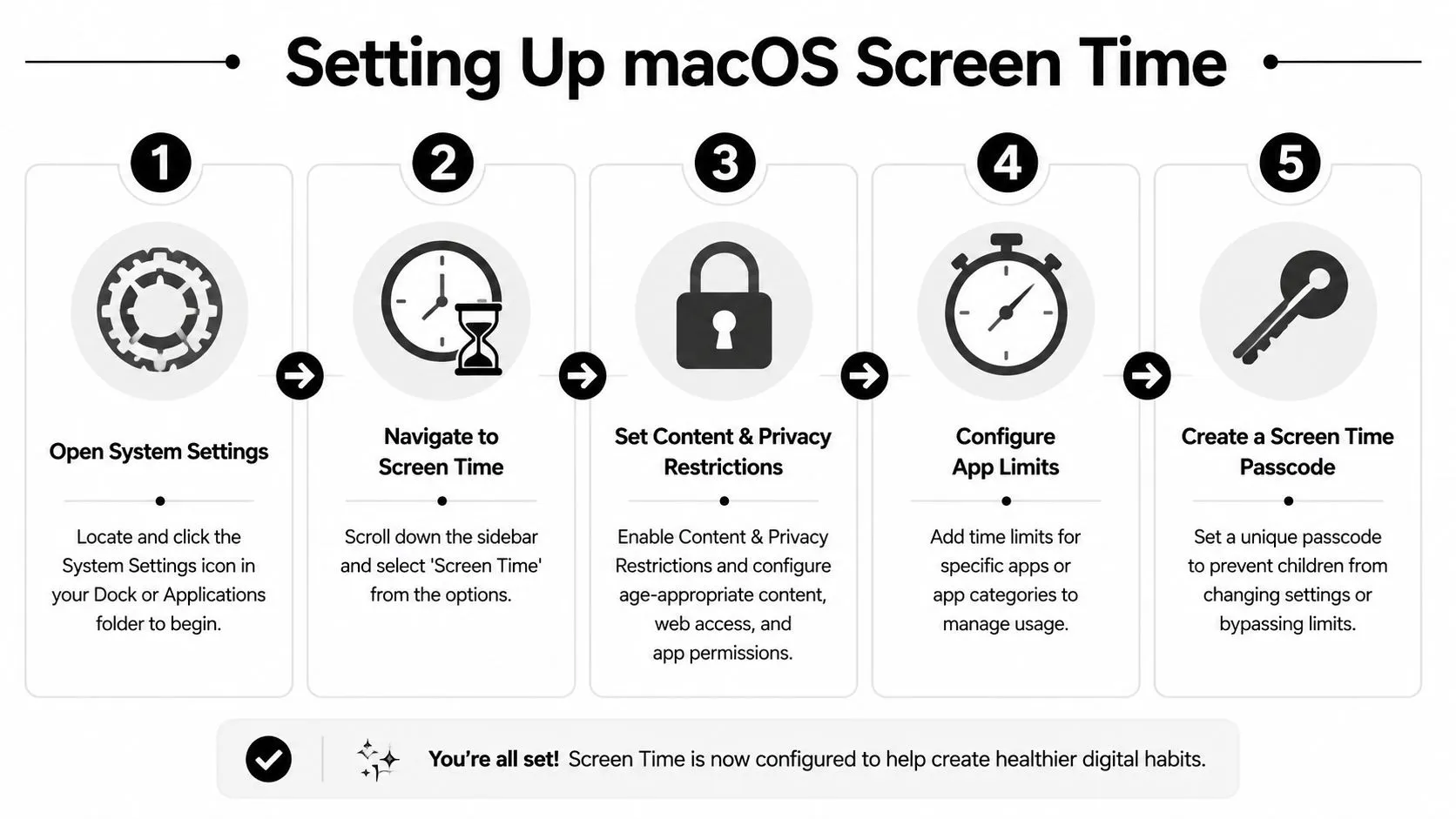
Apple handles current Mac parental controls through Screen Time in System Settings. Turn on App & Website Activity, lock the Screen Time settings, and use Content & Privacy for content and account restrictions. If you manage a child’s device through Family Sharing, select the child before changing the controls. Apple keeps the current steps in its Mac Screen Time guide.
Start with the right account structure
This part matters more than people expect. If restrictions live on the same administrator account the user controls, bypassing them gets much easier.
Set up the Mac like this:
- Parent or manager account with administrator privileges.
- Child or restricted account as a standard user.
- Family Sharing enabled if you want to manage settings from another Apple device.
That structure protects the settings themselves, not just the apps and websites. For a child, it keeps boundaries clear. For an adult in recovery, it adds healthy separation and reduces the chance of changing settings in a vulnerable moment.
Turn on the most effective settings
Open System Settings > Screen Time for the managed account. Turn on App & Website Activity, then choose Lock Screen Time Settings and create a passcode the restricted user does not know. Start with the controls that create the most friction with the least complexity.
- Downtime: Set the hours when the Mac should be functionally closed off. A common schedule is 9 PM to 7 AM. Turn on Block at Downtime so the device is not easily usable during those hours.
- App Limits: Add limits for browsers, video apps, games, social platforms, or any app that tends to become a gateway.
- Content & Privacy Restrictions: Review web content, app installs, purchases, explicit media, and permission changes.
- Passcode: Set a Screen Time passcode that only the managing adult knows.
For web filtering, choose the strictest option the situation can realistically support. With younger children, an allowlist is usually the cleanest setup. With older teens or adults who still need normal browsing for work or school, Limit Adult Websites may be the more practical choice. It is still easier to get around than a layered system, so set expectations correctly from the start.
Safari deserves extra attention because it is often the default path back to problem content. Use Content & Privacy > Content Restrictions in Screen Time for web access, and use the separate guide to Safe Search in Safari to understand what Apple controls and what must be configured in the search engine.
What Screen Time does well
Screen Time is useful because it is already on the Mac. There is nothing extra to install, and the controls are close enough to everyday settings that a parent, spouse, or accountability partner can usually maintain them without much training.
It handles a few jobs well:
| Area | What it helps with |
|---|---|
| Downtime | Cuts off late-night access and creates a stopping point |
| App Limits | Reduces repeat use of known trigger apps |
| Content restrictions | Adds basic filtering for web and media content |
| Family Sharing | Lets a parent manage settings from Apple’s system |
It also helps with purchases, app ratings, and explicit media rules, which is useful for family setups.
The trade-off is simple. Screen Time is good at setting boundaries inside macOS. It is not designed to be a tamper-resistant recovery system by itself. Use it to reduce easy access, create delay, and support accountability. Then add layers that cover the gaps Apple leaves open.
Adding Network-Level DNS Filtering
A common failure point looks like this. Screen Time is on, Safari restrictions are set, and the Mac still reaches explicit content through a different browser, an app preview, a search result, or a video embedded outside the page you expected to block. That is why browser-level controls need backup.

Why DNS filtering matters
DNS handles the lookup that sends a device to the right website or service. If you point the Mac to a filtering DNS provider, many requests get stopped before the site loads at all.
That matters for accountability. Screen Time can limit access inside macOS, but it does not inspect every path equally well. Network-level filtering covers more of the device, including traffic that never starts as a normal web page visit. For parents, that means fewer obvious holes. For adults building a relapse-prevention setup, it adds friction at the moment that usually matters most.
DNS filtering can complement Apple’s built-in controls, but one filter rarely holds up on its own, especially if the user knows the easy workarounds. If you want a stronger device setup overall, this guide on how to block porn on a computer covers the same layered approach across platforms.
How to set it up on a Mac
Choose a DNS provider with family or adult-content filtering, then change the DNS servers for the Mac’s active network connection in System Settings. The exact menu names can vary a bit by macOS version, but the process is usually straightforward:
- Open System Settings and select Wi-Fi or Network.
- Open the details for the active connection.
- Find the DNS section.
- Replace the current DNS servers with the filtering provider’s servers.
- Save the changes.
- Test the setup with several browsers, search results, and apps that can open web content.
- Restrict who can change network settings if this Mac is meant to stay locked down.
A few trade-offs are worth understanding before you rely on this layer.
- DNS filtering catches more than browser rules do. It can block domains across the device, which is why it works well as a second checkpoint.
- It is still possible to bypass if the user can change settings. A teenager with admin access or an adult in a high-urge moment can switch DNS servers, use a VPN, or tether to another connection.
- Some providers overblock. A filtered DNS service may block forums, image hosts, or harmless pages that share infrastructure with explicit content. Test the sites you need.
- Public Wi-Fi can weaken your plan. If the Mac joins unmanaged networks often, your home setup matters less unless the device itself is also locked down.
The practical rule is simple. Use DNS filtering with Screen Time, not as a replacement for it. Done well, it adds one more barrier between an impulse and a click, and that extra pause is often what makes the whole system more effective.
Installing a Purpose-Built Porn Blocker for Mac
Late at night is when weak setups fail. Screen Time is on, DNS filtering is in place, and the Mac still feels one bad moment away from a workaround. That is usually the point where a general parental control setup stops being enough.
Why general parental controls fall short in recovery
Apple’s parental control tools have improved a lot since Screen Time replaced the older Parental Controls system, as noted earlier. For family basics, they cover plenty. You can restrict websites, apps, store purchases, privacy changes, and time limits.
Recovery use is different.
If the core issue is relapse prevention, compulsive use, or a pattern of testing limits, the software has to keep working during the exact moments when judgment is lowest. A standard family tool was not built around that goal. It was built around routine household management.
That difference shows up fast in real use. A person who is stressed, tired, isolated, or looking for loopholes does not need a perfect bypass. They only need one weak point. A second browser, a settings change, an uninstall path, or a gap in coverage is often enough.
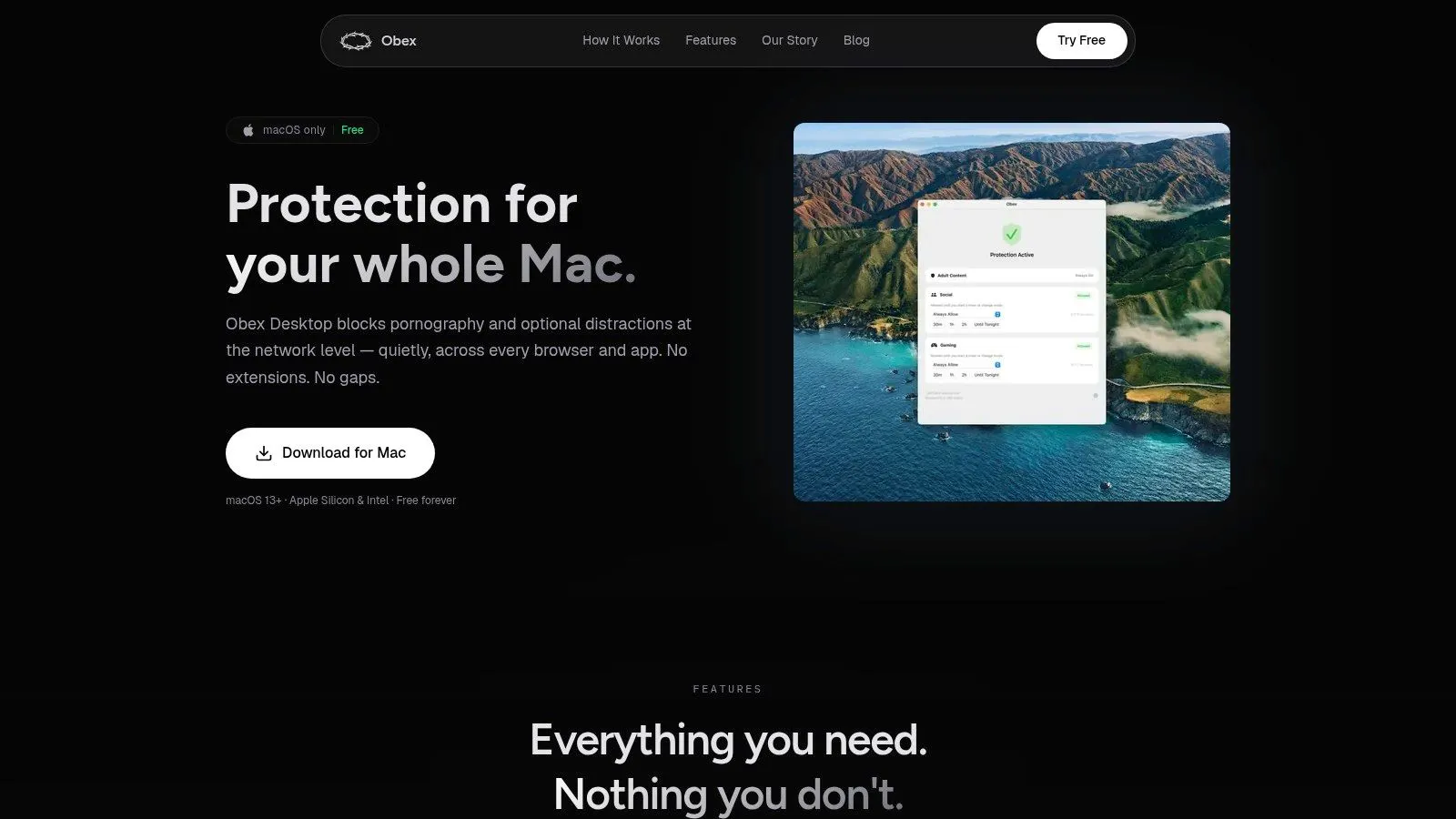
That is why a dedicated porn blocker can earn its place in the stack. It adds pressure where built-in controls are light.
What to look for in a dedicated blocker
A good blocker for Mac should do more than blacklist a few websites. It should make common workarounds harder and make secrecy less comfortable.
Look for software with:
- Device-wide coverage: protection that applies beyond one browser
- Harder removal or shutdown: settings that cannot be casually changed in a high-risk moment
- Recovery-focused design: tools built for relapse prevention, not only child screen limits
- Accountability features: reports, alerts, or partner controls that involve another person
- Clear setup boundaries: enough control to reduce impulsive changes without making the Mac unusable for normal work
Those trade-offs matter. The strongest blocker is often less convenient. That is the point. If convenience is the top priority, the system stays easy to bypass. If accountability is the priority, a little friction helps.
If you want a side-by-side breakdown of recovery-focused options, this guide on how to block porn on a computer is a useful place to compare tools.
Use blocker software as part of an accountability system
A blocker is not recovery by itself. It is a barrier.
Used well, that barrier creates delay. Delay gives a person time to text a spouse, call a friend, leave the room, or let the urge pass instead of feeding it. In my experience, that pause is often more valuable than the block page itself.
The strongest setups also make the blocker answer to someone else. That could be a spouse, mentor, pastor, sponsor, or trusted friend. In a family context, explain the rules and review activity together so the software supports real patterns, not guesses or secret surveillance.
Keep expectations realistic. Dedicated software can close a lot of doors, but it works best with a standard user account, limited app installs, fewer extra browsers, and honest accountability outside the device.
Later in the process, seeing the software in action can help clarify what this layer adds:
The practical takeaway is simple. macOS parental controls are a good first layer. A dedicated blocker is what turns a basic setup into something more resilient under pressure.
Testing Your Defenses and Creating Accountability
A setup isn’t finished when the toggles are on. It’s finished when someone tries to get around them and fails.
Run a real-world bypass test
The best test is ordinary behavior mixed with a little curiosity. Don’t just check one blocked site in Safari and call it done. Use the Mac the way the managed person would use it.
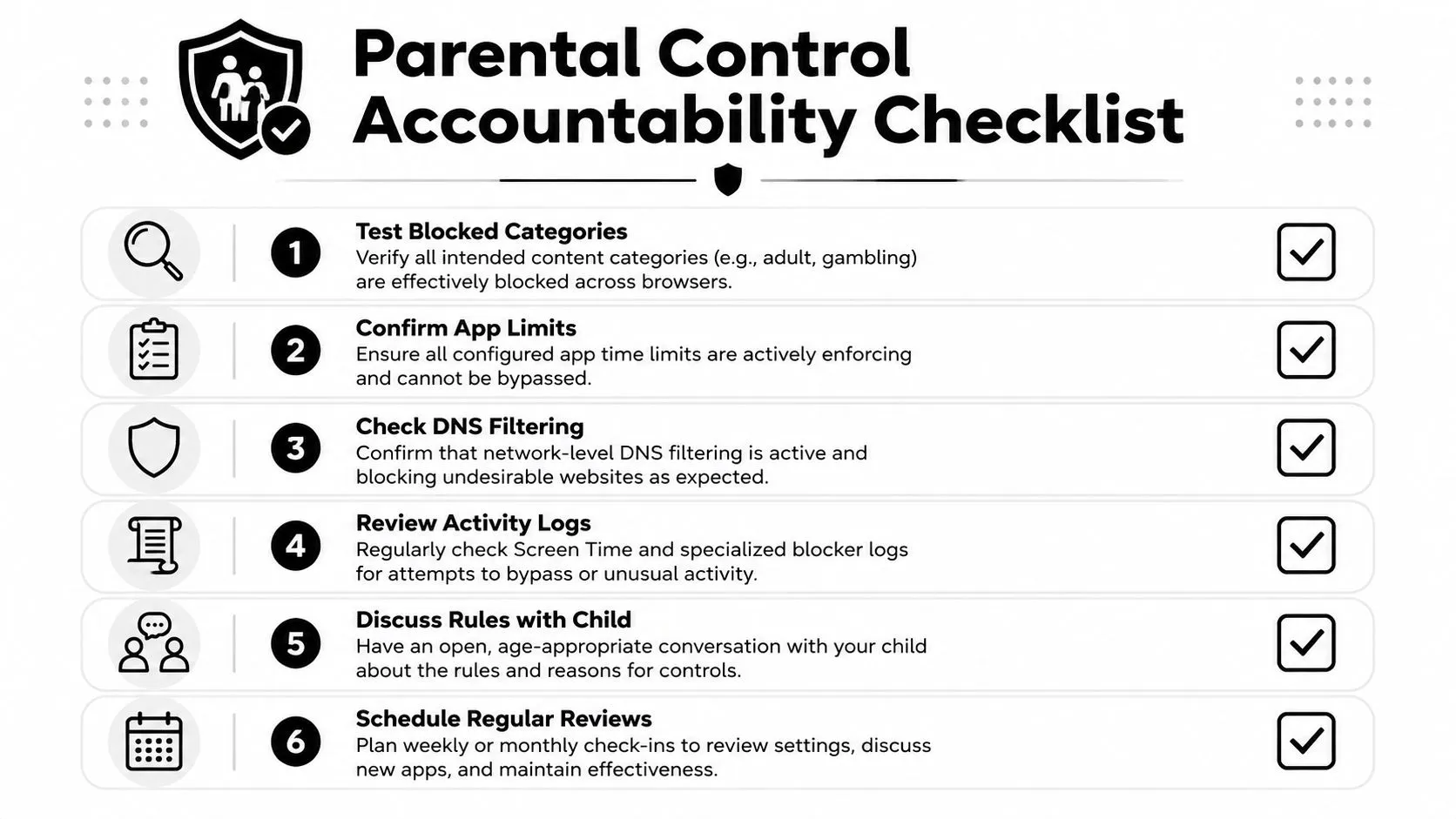
A practical test checklist includes:
- Try multiple browsers: Open Safari, then any other installed browser, and check whether the same blocked categories are blocked there too.
- Attempt an app install: See whether the user can download a new browser, media app, or VPN-style tool without approval.
- Check account creation paths: Look in Users & Groups and confirm a standard user cannot create another account or enable guest access.
- Test network settings: Try changing Wi-Fi or DNS settings from the restricted account.
- Review reports: Look at Screen Time activity and any blocker logs to see whether the system is catching what you expect.
Reviewing activity should support better conversations, not just tighter controls. Tell a child what is monitored, explain why, and revisit the setup as their age and needs change.
Use the setup to support trust
The most effective accountability setups are clear, calm, and specific. They don’t rely on vague warnings. They rely on agreed rules and regular check-ins.
For a child, that might sound like this:
“These controls are here to protect sleep, reduce bad surprises, and help us talk about what you’re doing online.”
For an adult in recovery, it often sounds more direct:
“I don’t want private access to be stronger than my values. I’m choosing friction because I know isolation makes relapse easier.”
That difference matters. Kids need guidance and age-appropriate boundaries. Adults in recovery need ownership and honesty. The same technology can serve both, but the conversation around it should fit the person.
A simple review rhythm works well:
| Review point | What to ask |
|---|---|
| Weekly check-in | Did anything bypass the setup? |
| New app review | Is this app needed, or just risky? |
| Device audit | Are there new browsers, accounts, or changed settings? |
| Relational check | Are we talking openly, or hiding? |
If you’re comparing accountability tools more directly, this review of Covenant Eyes and related trade-offs is useful for thinking through what software should and should not carry on its own.
The technical part matters. The human part matters more. Good accountability doesn’t create constant suspicion. It creates fewer blind spots and more honest conversations.
Your Layered Plan for Digital Freedom
A strong parental controls Mac setup isn’t one feature. It’s a stack of defenses that support better choices.
The first layer is macOS Screen Time. It handles downtime, app limits, purchase restrictions, and basic content controls. That makes it a solid starting point.
The second layer is DNS filtering. That gives you broader coverage across the device and catches traffic paths that browser-only restrictions miss.
The third layer is dedicated recovery or blocking software. That’s the layer that makes the setup more serious when the risk is relapse, compulsive use, or repeated attempts to get around the system.
Together, those layers create friction in the right places. Not to punish. Not to create a digital prison. To make impulsive behavior harder and intentional living easier.
That’s what a healthy setup does. It protects sleep. It reduces secrecy. It slows down urges. It supports conversations that would otherwise happen too late, after the damage is done.
If your current setup has been easy to bypass, don’t take that as failure. Take it as feedback. You probably weren’t missing effort. You were missing layers.
Build the Mac like you expect pressure, temptation, and workarounds to happen. Because sometimes they will. When the system is honest about that, it becomes more useful and more compassionate at the same time.
For the rest of the setup, add Safe Search on Safari and follow the cross-platform guide to blocking porn on a computer.
If you want a recovery-focused layer that goes beyond standard Mac restrictions, take a look at Obex. It’s built for people who want stronger blocking, better accountability, and practical support while they work toward freedom from porn and compulsive digital habits.