How to Turn on Safe Search on Safari (iPhone & Mac)
Learn how to enable Safe Search on Safari for iPhone, iPad, and Mac using Screen Time. Get steps for troubleshooting and stronger porn blocker alternatives.

Obex
Obex Team
You open Safari, search for a setting, and expect to find a simple SafeSearch switch. It isn’t there. That usually leads to a lot of tapping around, a little anger, and the feeling that Apple hid the one control you need.
If your goal is recovery, that frustration matters. You’re not trying to tweak a browser for fun. You’re trying to make your phone and laptop safer in real life, especially in the moments when impulse beats intention. Safe search on Safari can help, but only if you set it up the right way and understand where its limits start.
Table of Contents
- Why You Can’t Find a SafeSearch Button in Safari
- How to Enable Content Restrictions on iPhone and iPad
- Setting Up Web Content Filters on Your Mac
- Adjusting Search Engine Settings Directly
- Troubleshooting Why Safe Search Is Still Locked On
- When Basic Filters Are Not Enough for Recovery
- Building Your Digital Fortress
Why You Can’t Find a SafeSearch Button in Safari
Safari doesn’t have a built-in SafeSearch button. This detail is often overlooked.
Apple handles web filtering at the system level, not inside Safari itself. So if you keep searching Safari settings, you’ll keep running in circles. The control you want lives in Screen Time on iPhone, iPad, and Mac.
There’s another layer too. Google has made clear that its own SafeSearch rules can apply across browsers. In Google’s Search Community, Google stated that “Safe Search is enforced across all browsers; Safari cannot override it” when a higher-level restriction is active, like an account or device setting, as noted in Google’s Search Community thread.
What this means in practice
If Google is filtering results because of an account rule, Safari can’t undo that.
If Apple is filtering web content through Screen Time, Safari follows that too.
That’s why safe search on Safari feels confusing. The browser is often just the visible layer. Actual controls sit above it.
Practical rule: If you want safer browsing in Safari, start with the device settings first. Then check the search engine account that powers your results.
This matters even more in recovery. A lot of people think they need one switch. What they need is a layered setup that creates friction before a relapse starts. Browser settings alone won’t do that.
Here’s the simple takeaway:
- Safari is not the control center. Screen Time is.
- Google may still filter results. That can happen even if Safari has no obvious setting.
- Recovery needs more than discovery. You need protection that holds up when motivation drops.
Once you understand that, the setup becomes much easier. You stop hunting for a missing button and start changing the settings that control access.
How to Enable Content Restrictions on iPhone and iPad
On iPhone and iPad, safe search on Safari starts in Settings. Not in Safari. Not in Google. In the device itself.

Turn on Screen Time restrictions first
Use this path: Settings > Screen Time > Content & Privacy Restrictions > App Store, Media, Web & Games > Web Content. Choose Limit Adult Websites for Apple’s automatic filtering or Only Approved Websites for a strict allowlist. Apple documents the current options in its iPhone and iPad parental-controls guide. Menu wording can vary slightly by software version.
If you skip the first toggle for Content & Privacy Restrictions, the rest of the menu won’t really matter. The controls may appear, but they won’t be active in the way you expect.
For many families, this is also where broader device rules start. Review app installs, purchases, communication settings, and account changes as part of the same setup instead of treating Safari as the whole environment.
Choose the right level of filtering
You have two practical options:
-
Limit Adult Websites
This is the better starting point for most adults in recovery. It blocks known adult sites and adds filtering to search results, but still allows normal browsing. -
Allowed Websites Only
This is stricter. It turns the web into an allowlist. Only approved sites open.
If your pattern is impulsive searching, Allowed Websites Only can be a strong short-term reset. If your work or daily life needs broader access, Limit Adult Websites is more realistic.
Here’s a simple comparison:
| Setting | Best for | Trade-off |
|---|---|---|
| Limit Adult Websites | General protection with daily usability | Some content may still get through |
| Allowed Websites Only | Strong lockdown and child devices | Too restrictive for many adults |
A lot of people fail here because they choose the wrong setting for their real life. If the setup is too strict to maintain, they turn it off. If it’s too loose, it doesn’t help when urges hit.
Add sites you always want to allow or block
Inside the same Web Content area, Apple lets you customize access.
Use these options:
- Always Allow for sites you need, like work tools, school platforms, or recovery resources.
- Never Allow for sites you know are risky, even if the broader filter misses them.
That small step matters. Recovery usually improves when you remove debate. If you already know a site is a problem, block it now instead of trusting your future self to resist it later.
This video shows the menu flow clearly if you want to follow along on your device:
One more point. If your wider goal is reducing phone-driven triggers, not just adult content, these apps to limit phone use can help you tighten the rest of your environment too.
A good filter doesn’t just block bad content. It slows down the fast, automatic path back to it.
Setting Up Web Content Filters on Your Mac
A Mac often becomes the device people forget to secure until it becomes the workaround. Phone filters are on, search settings look clean, then an urge hits at a desk and Safari on the laptop is wide open. If recovery is the goal, the Mac needs its own setup.
Safari does not have a dedicated SafeSearch switch for this. On macOS, the control lives in System Settings > Screen Time > Content & Privacy > Web Content. Choose Limit Adult Websites to apply Apple’s built-in filtering across the system.

That setup matters on shared machines because the protection is tied to device controls, not just one browser preference. If you manage the Mac as an administrator, review each user account carefully. A second account with looser settings can become the path of least resistance.
If your main problem is explicit content on a computer, not just search results in Safari, this guide on how to block porn on a computer gives a fuller setup.
Know what this does and does not cover
Apple’s Limit Adult Websites setting is useful as a baseline. It blocks many known adult sites and adds friction at the device level, which is often enough to stop impulsive clicks.
It also has real limits.
What it does well
- Blocks many known explicit sites
- Applies beyond a single Safari tab
- Creates enough friction to interrupt fast, automatic behavior
Where it falls short
- It relies on Apple’s built-in filtering rules
- It does not create accountability
- It can miss content that appears through other apps, alternate browsers, or less obvious web paths
That trade-off matters in recovery. Built-in filters help with access. They do not help much with honesty, pattern interruption, or relapse visibility.
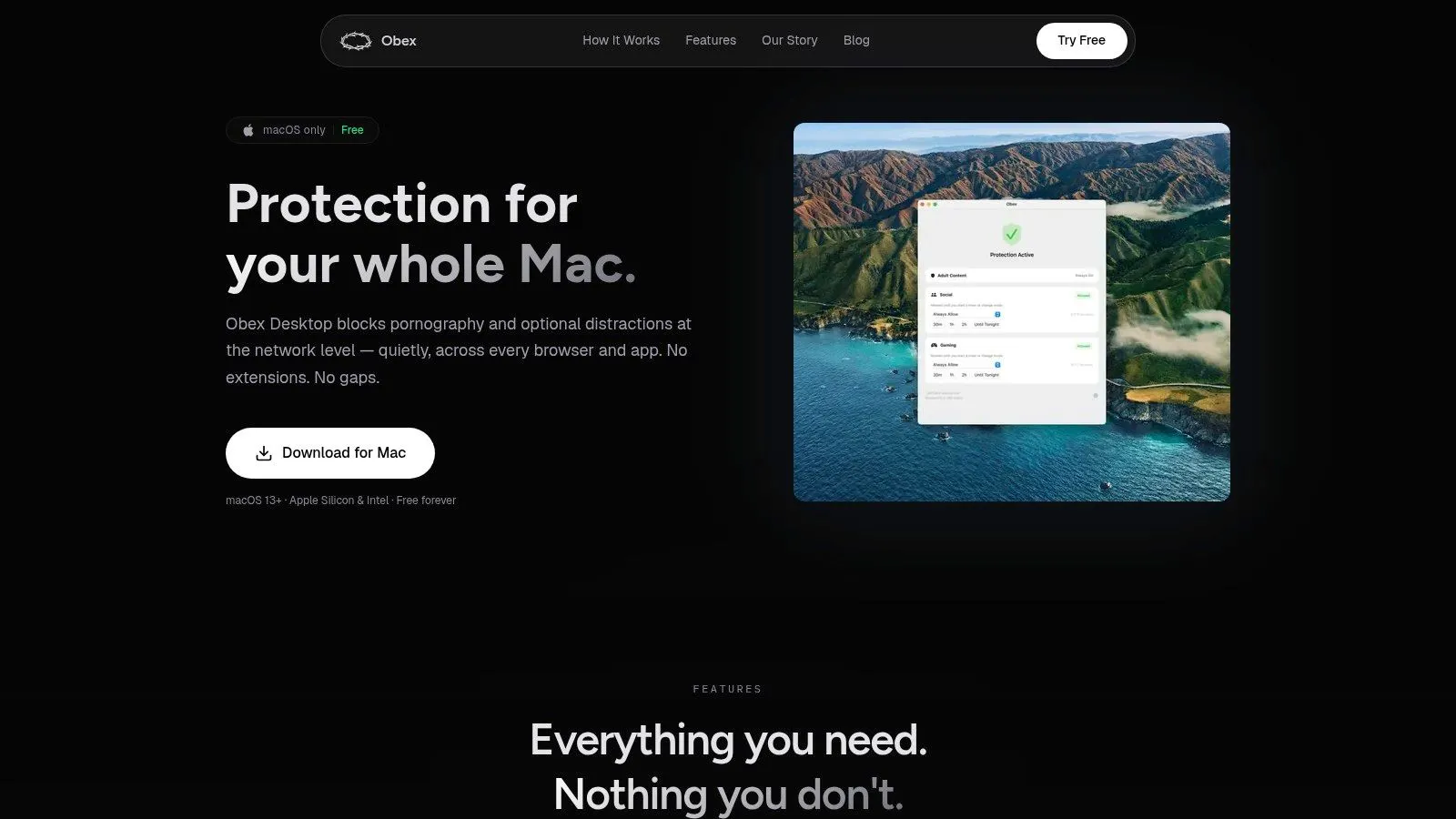
I usually tell people to treat Screen Time on Mac as the first layer, not the whole plan. If someone is serious about building a safer environment for recovery, dedicated accountability software such as Obex Desktop covers the gap Apple leaves behind by adding monitoring and structure that a native content filter cannot provide.
Consistency across devices matters too. If the phone is filtered but the Mac is loose, the weaker device usually wins.
Adjusting Search Engine Settings Directly
Device settings are one layer. Search engines are another.
If you only change Apple settings, you may still end up with inconsistent results depending on the account you’re signed into and the search tool you use. That’s why safe search on Safari should include a check of the search engines themselves.
Google needs its own check
Google has its own SafeSearch settings inside the search account and search preferences. If you’re logged into Google in Safari, those settings can shape what you see.
The practical move is simple:
- Open Google while signed into the account you use
- Find the search settings tied to that account
- Confirm SafeSearch is set the way you want
- Check whether the setting appears locked by a parent, school, workplace, or family system
If you’re in recovery, don’t treat this as optional cleanup. Treat it like closing a side door.
A common mistake is setting up Screen Time on the device, then forgetting that a signed-in Google account can still carry its own safety policy. That mismatch causes a lot of confusion later.
Do the same for Bing and DuckDuckGo
Bing and DuckDuckGo also have their own search preferences. The interface is different, but the logic is the same. Open the search engine you use. Go to settings. Check the content filtering level. Save it while signed into the relevant account if one exists.
A simple mental model helps:
| Layer | What it controls |
|---|---|
| Apple Screen Time | Device-level browser and web restrictions |
| Search engine settings | Result filtering inside Google, Bing, or DuckDuckGo |
| App-specific settings | Rules inside a separate search app or browser |
Here, people often assume one setup covers everything. It doesn’t.
If your goal is safety, checking each layer may be enough. If your goal is recovery, this still isn’t the finish line. It’s a solid base, but it depends on your own consistency to maintain it.
Troubleshooting Why Safe Search Is Still Locked On
This is one of the most annoying problems. You change settings, turn filters off, and Google still shows SafeSearch as locked.
That usually means the control isn’t sitting where you think it is.
The control hierarchy matters
Safe search on Safari follows a stack of authority. The browser is usually near the bottom. Higher-level systems can override what you try to change locally.
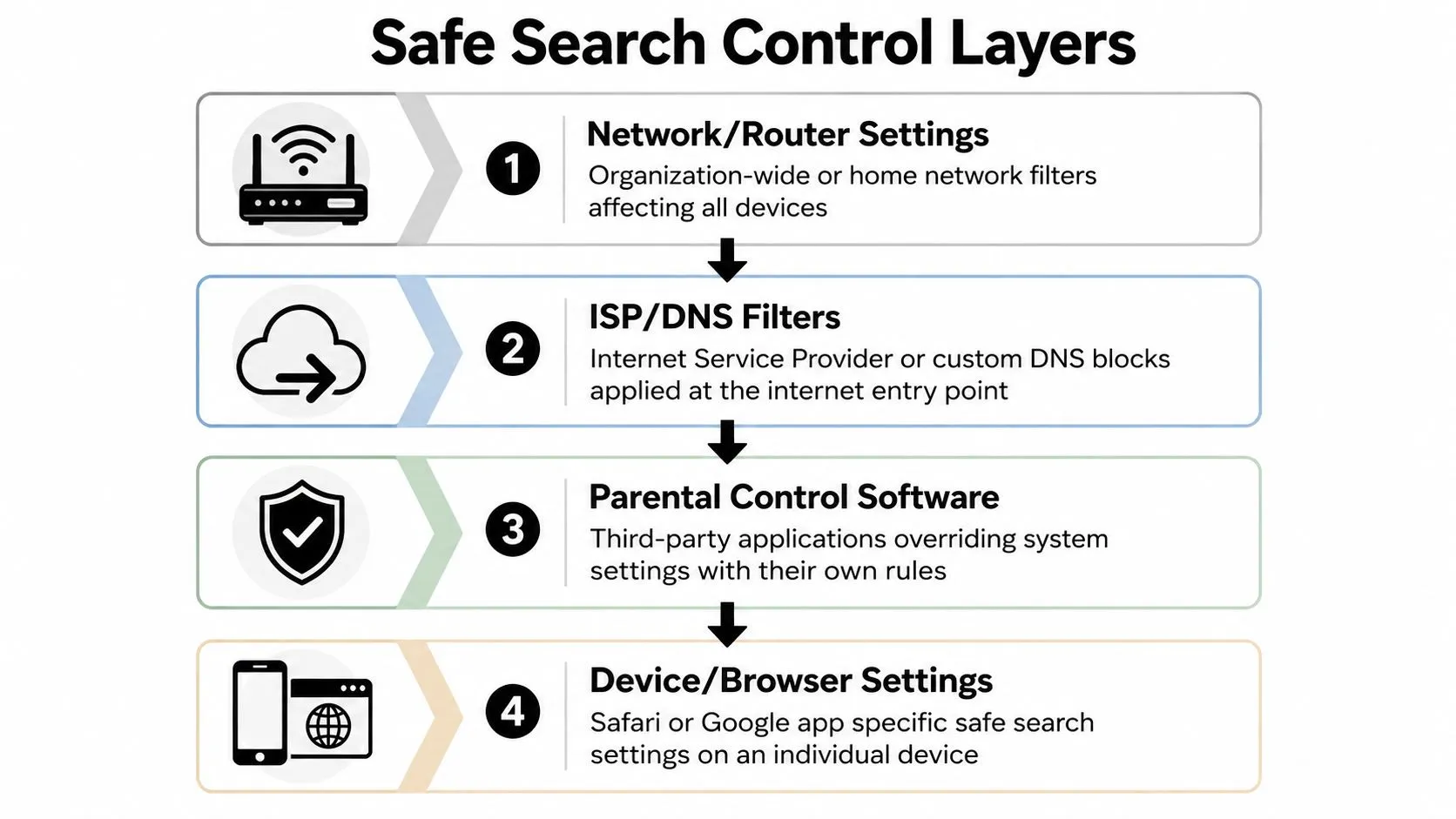
Think about the layers in this order:
-
Network or router rules
A school, office, family router, or managed network may force filtering. -
ISP or DNS filters
Internet filtering can happen before Safari ever loads a page. -
Parental control software
Third-party tools can override what Apple settings seem to allow. -
Device and browser settings
These are the controls you can usually see and change yourself.
When SafeSearch is stuck on, the higher layer usually wins.
Common reasons settings won’t change
When a setting is locked, the cause is usually a higher-level control rather than Safari itself. Older how-to articles often feel incomplete because they tell you where to tap, but not why the taps fail.
Check these common causes:
-
Your Google account is managed
A family, school, or workplace policy may lock search settings. -
Screen Time is still active somewhere
You may have changed one menu but left the root restriction enabled. -
A passcode stands in the way
If you don’t know the Screen Time passcode, you won’t be able to make lasting changes. -
A device profile manages the setting
School-issued and work-issued devices often have hidden controls.
Locked SafeSearch usually isn’t a Safari bug. It’s a sign that another layer has authority.
A practical way to diagnose it is to ask one question at a time. Is this my personal device? Am I signed into a managed account? Am I on a filtered network? Is Screen Time off at the top level?
That method is slower than random tapping, but it works better.
When Basic Filters Are Not Enough for Recovery
It often happens late at night. Safari is filtered, Search looks cleaner, and the setup feels solid enough. Then one stressful hour exposes the test. Can you bypass it from another app, turn it off with a passcode you already know, or work around it when your judgment is weaker than usual?
That is where Apple’s built-in tools reach their limit for recovery. They reduce exposure, which helps. They do not create much protection against your own future decisions.
Built-in tools help, but they have weak spots
The biggest trade-off is control. If you set everything up yourself, you may also know exactly how to undo it. That is convenient for normal device management. It is a problem for recovery, because relapse risk usually shows up in moments when convenience stops being your friend.
Safari also does not control your whole digital environment. Apple’s web restrictions can reduce access, but they do not automatically cover every browser, app, search engine, or device in the same way. Google SafeSearch is a separate search-engine setting; Safari does not have its own SafeSearch switch.
In practice, that means recovery can fail through small openings. A secondary app. A browser you forgot to lock down. A familiar settings menu during a high-urge moment. Built-in filters are good at reducing accidental exposure. They are much weaker at holding the line when someone is actively trying to get around them.
Three limits matter most:
- They are easy to reverse if you control the settings. Recovery usually needs barriers that still hold up when motivation drops.
- They block content, not patterns. A filter can remove triggers, but it does not address isolation, compulsive routines, or the habit loop behind repeated searching.
- They leave room for coverage gaps. One missed app or device can undo the sense of safety the main setup creates.
Recovery usually needs outside friction
The strongest recovery setups add friction you do not fully control on your own. That can mean accountability software, a trusted person who manages settings, counseling, or a combination of all three. The goal is simple. Make the safer choice easier, and the destructive choice harder.
| Support layer | Why it helps |
|---|---|
| Accountability partner | Adds oversight when your own judgment becomes unreliable |
| Counseling | Helps address stress, shame, isolation, and repeat behavior patterns |
| Dedicated blocker | Covers more pathways and is harder to remove on impulse |
| Routine changes | Reduces exposure during the times and places urges usually show up |
If you need support beyond device settings, look for a licensed professional who understands compulsive sexual behavior, relationship repair, or the specific issue you are facing. Technical safeguards can support recovery, but they do not replace care.
Dedicated recovery tools also solve a different problem than Apple does. Apple gives you content restrictions. Tools built for recovery focus on accountability, tamper resistance, and coverage across the places people act out. If you are comparing options, this breakdown of Canopy vs Covenant Eyes shows how dedicated tools differ from built-in controls.
The best filter in recovery is the one you cannot remove when you are tired, stressed, or alone.
That is the standard. A setup that works only when you already feel strong is a limited setup. For many people, Safari SafeSearch is a good starting point. Recovery usually needs one more layer, and often more than one.
Building Your Digital Fortress
A safer setup on Safari starts with the truth. There is no magic button. There is a stack of controls, and each one solves part of the problem.
Use Screen Time on iPhone, iPad, and Mac. Check your search engine settings directly. Fix locked SafeSearch issues by looking at the higher layers first. That gives you a cleaner and safer digital environment.
For recovery, though, basic filtering is only the fence. The stronger move is building a system that still holds when your mood drops and your guard does too. That usually means more friction, fewer loopholes, and support outside your own willpower.
If you’re trying to stop porn use, don’t settle for the smallest fix that technically works. Build the environment that matches the seriousness of your goal.
Complete the setup with Mac parental controls and the broader guide to blocking porn on a computer.
If you want stronger support than Apple’s built-in settings can offer, take a look at Obex. It’s built for recovery, not just filtering, with tools that help you reduce exposure, stay accountable, and keep moving when urges hit.